

Note that changes to routing settings may not immediately take effect when processing orders. It may take up to 15 minutes for updates to be reflected in the system while the cache refreshes.
Data Lists Page
The Filter Data Lists page displays all existing data lists in a table. Click the Current Site selector in the top right to switch to a different site and view its data lists instead.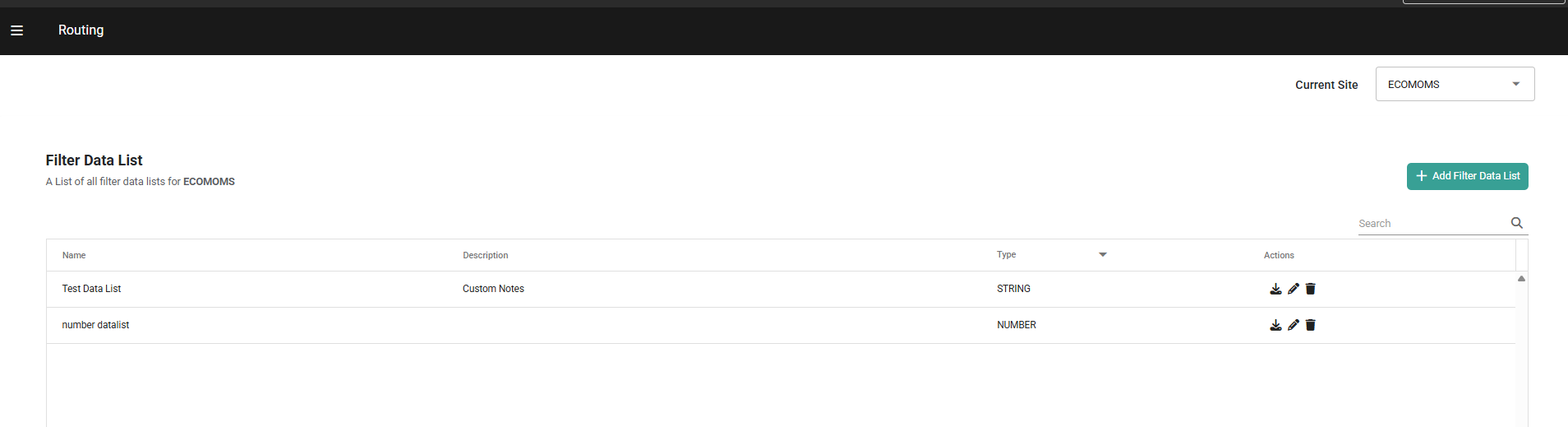
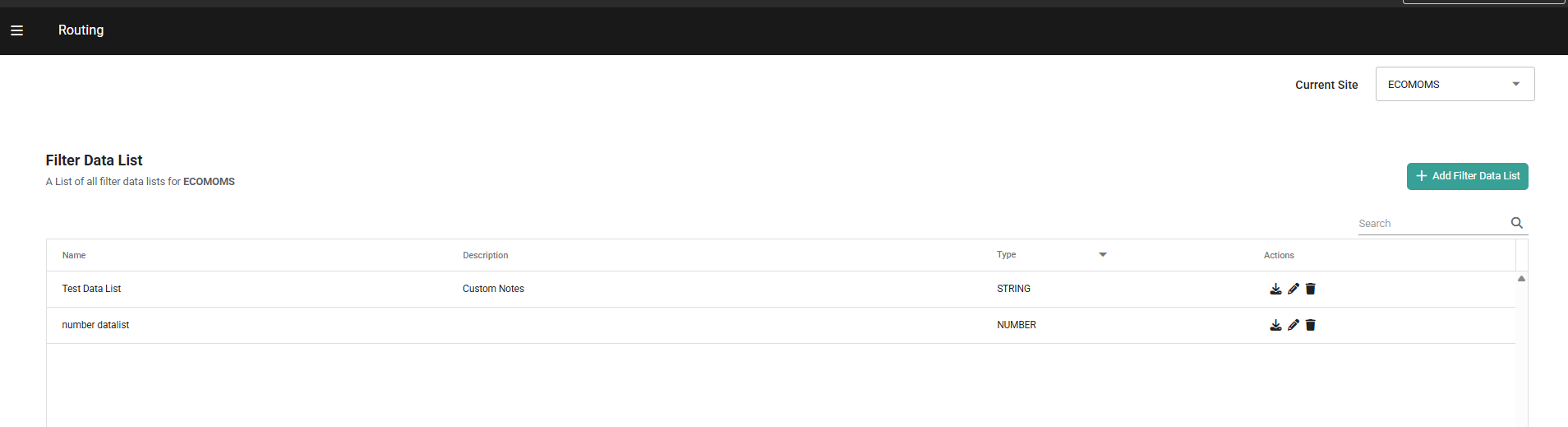
Create a New Data List
To create a new data list:- Go to the Filter Data Lists page.
- Click Add Filter Data List.
- Enter a Name for the data list.
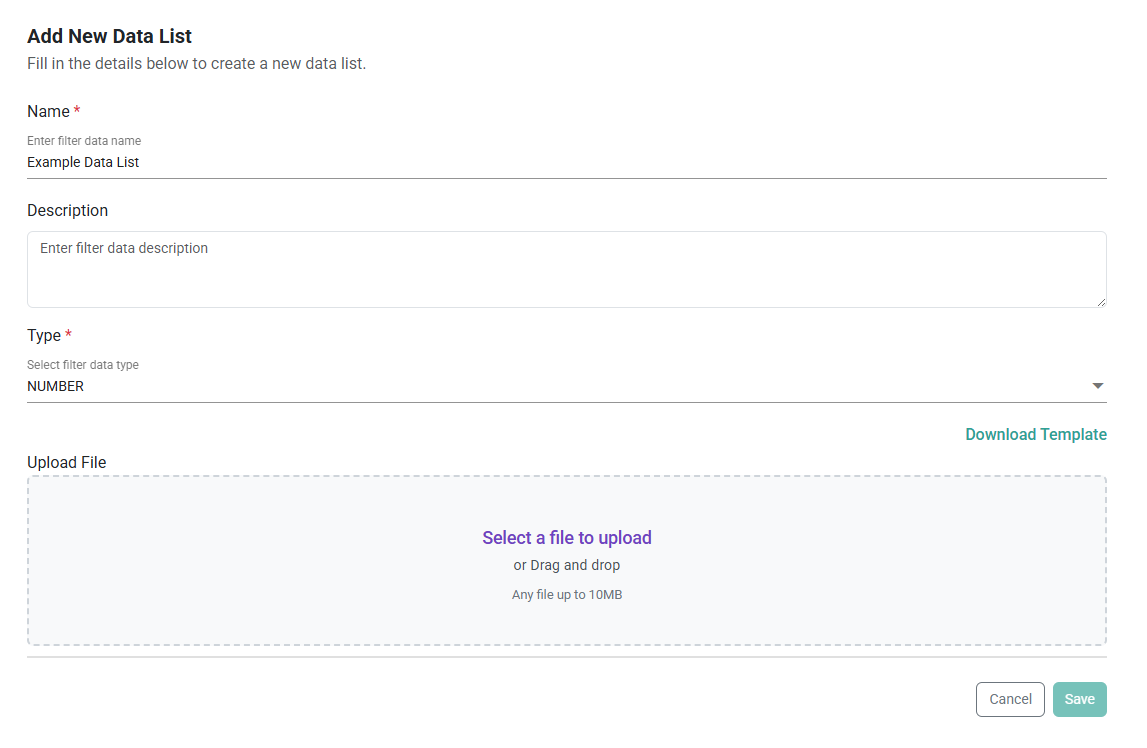
- Select the Data Type (Text, Number, Location, or Date) you want to use for the list values.
- Enter an optional Description.
- When initially creating a data list, its values should be provided via .CSV file upload. A template for building this file can be downloaded from the Download Template button.
- Click Save.
Edit Data Lists
Once a list has been created, it can be managed or edited from the Filter Data Lists page. Click the Delete icon in the Actions column to remove a data list entirely. If you want to delete a data list, you must first remove it from any filters it’s currently used in. To update a data list and its values instead:- Click the Edit icon in the Actions column of any list to view its configurations.
- Edit the list’s Name or Description as needed.
- Use the action icons in the values table to modify or delete any existing fields.
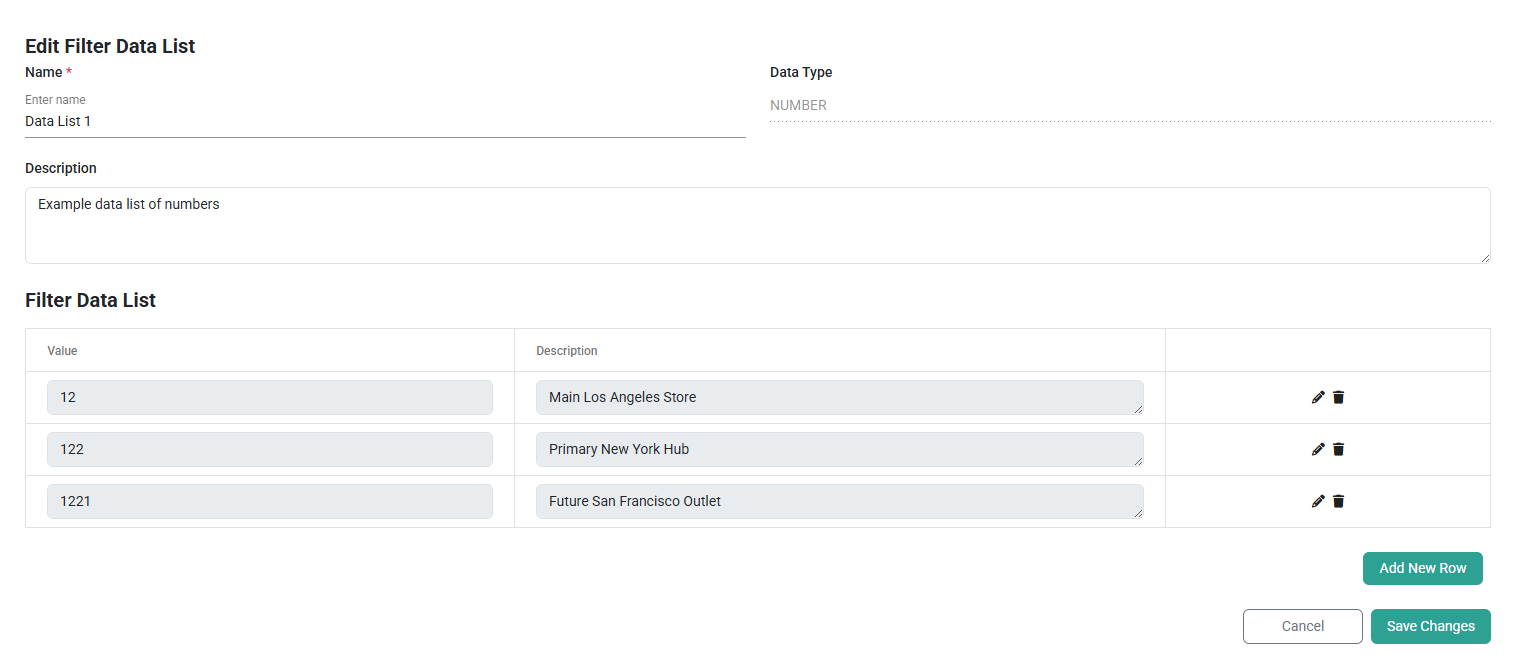
- Click Add New Row to define additional value:description data pairs.
- To export the current data list as a CSV file, click the Download as CSV button located to the right of the Add New Row button
- Click Save Changes.
Export a Data List as CSV
There are two ways to export a data list: From within a Data List (Data List Detail Page)- Open a data list by clicking the Edit icon in the Actions column on the Filter Data Lists page.
- Click the Download as CSV button, located to the right of the Add New Row button.
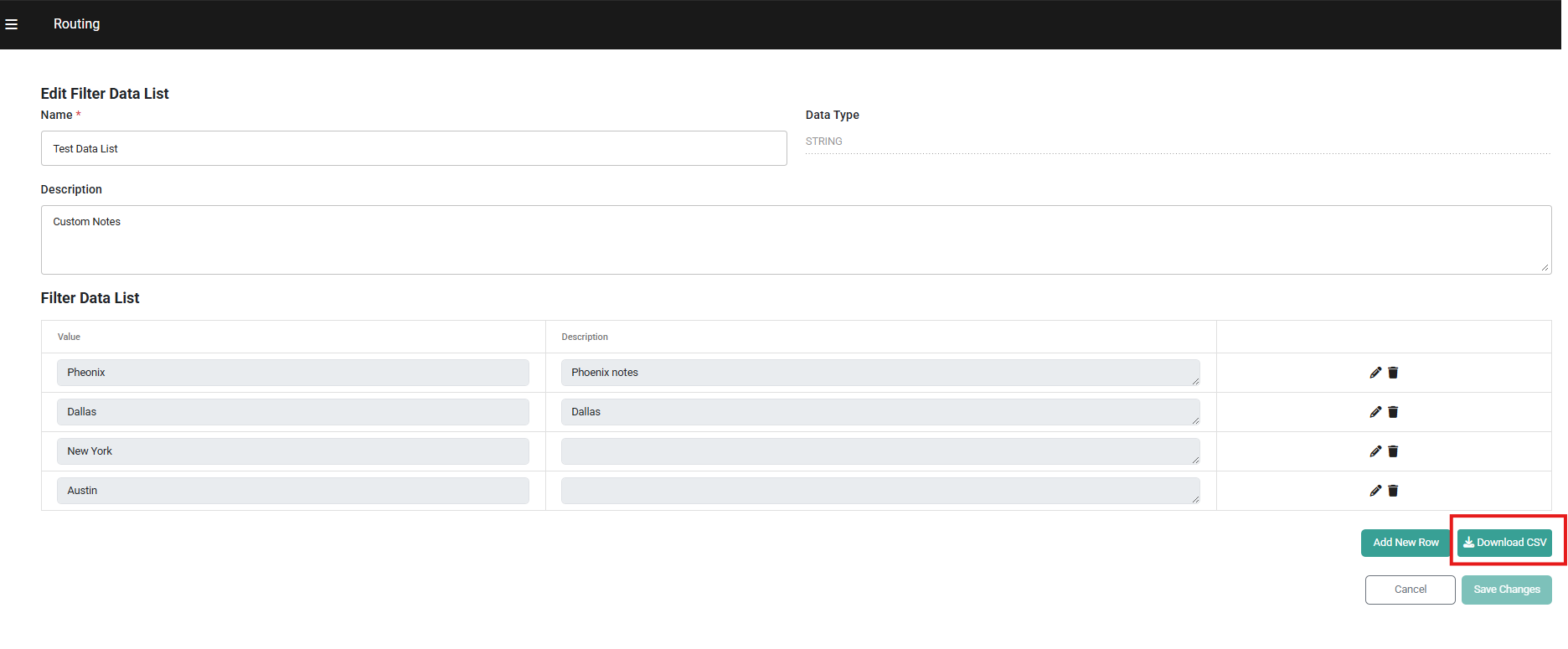
- The file downloads automatically and includes the following columns:
- Value — the stored value for each entry
- Description — the full description for each entry (untruncated)
- The export reflects all entries for the currently selected site.
- Navigate to the Filter Data Lists page.
- In the Actions column of the data list you want to export, click the Export icon.
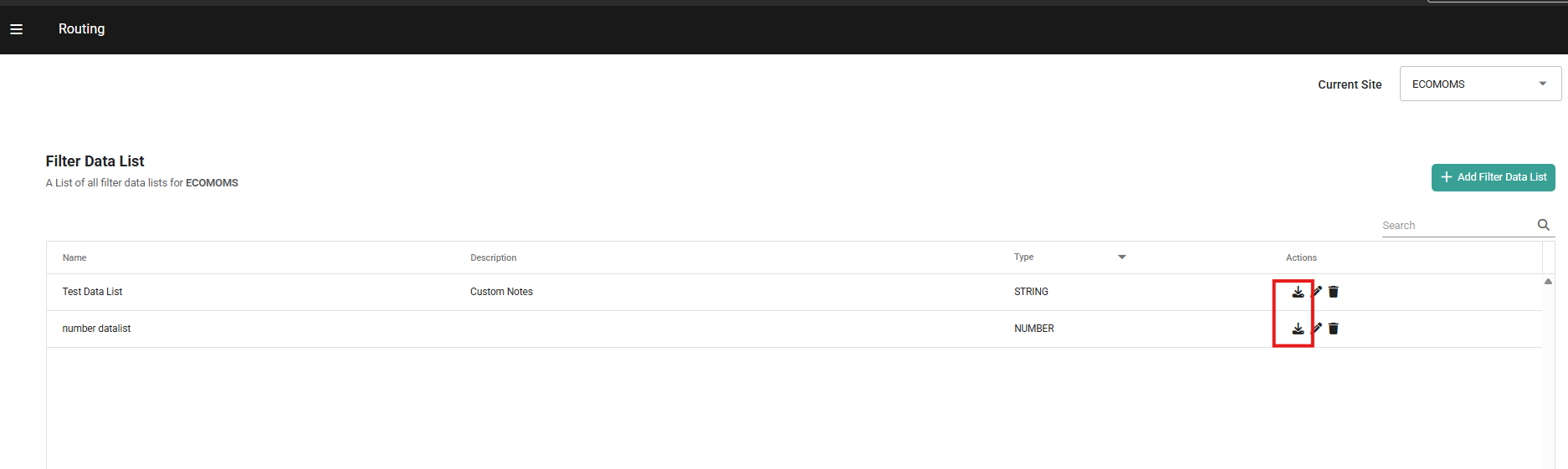
- The CSV file for that specific data list downloads automatically.