
Order Routing Concepts
Understand how Kibo routes orders to fulfillment locations
Developer Reference
See the Order Routing API documentation for programmatic access
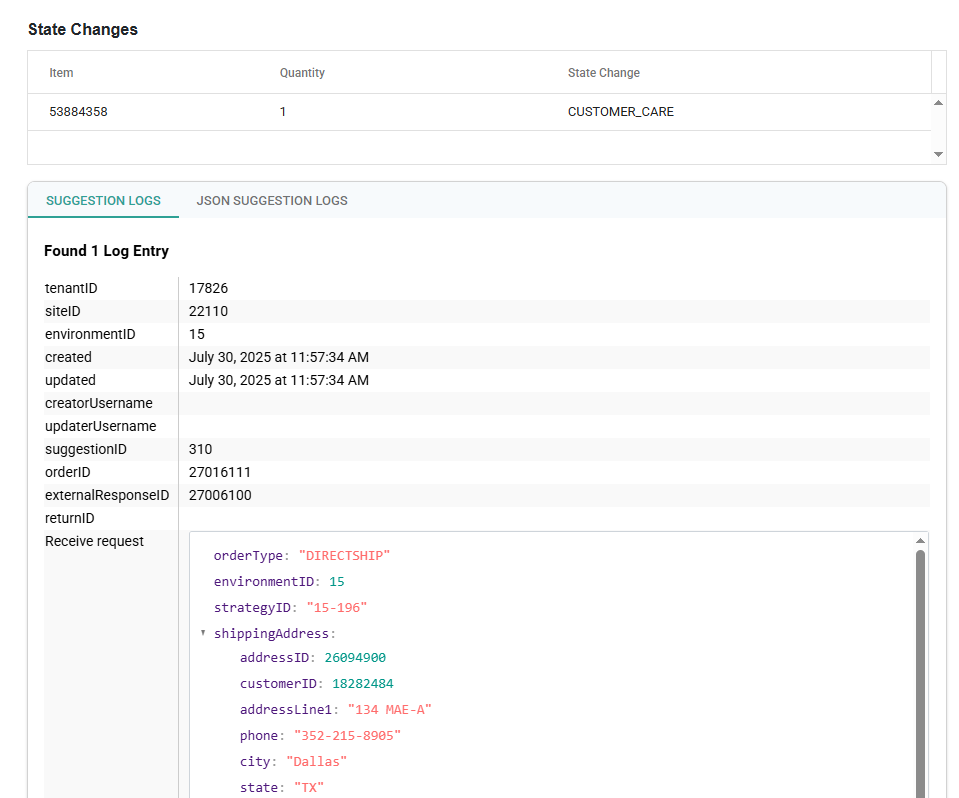
Suggestion Logs
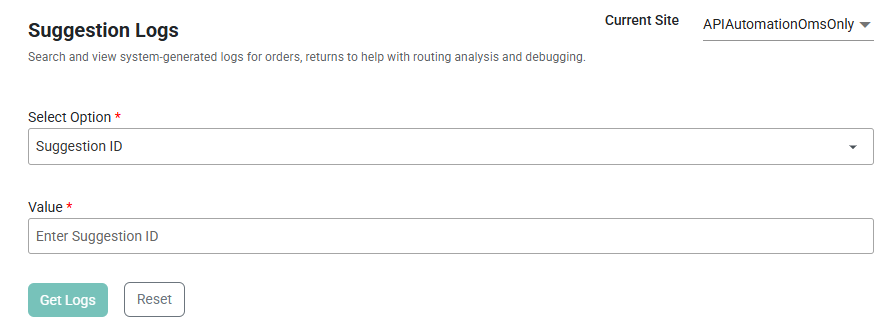
The Suggestion Logs page allows you to place a Get Suggestion Log API request through the user interface. By using the Candidate Suggestion and Routing Suggestion calls, you can test your order routing configurations by retrieving the list of possible location candidates for a given order and Order Routing’s analysis of the best assignment location.- Use the Current Site selector in the top right to specify which site’s routing you want to retrieve logs for.
- Select the Option of whether you want to search based on Suggestion ID, Order Number, External Response ID, or Return Number.
- Enter the Value of that field that you want to search for.
- Click Get Logs.
Routing Debugger
The Suggestion Debug page allows further testing of the Routing Suggestion logic based on specific item and inventory data. The page will then process the call and return a breakdown of the result, listing location candidates and the logical steps that were taken to determine the routing result. To begin configuring the call, you must specify which order items are being routed and define how you want to evaluate inventory.- Use the Current Site selector in the top right to specify which site’s routing you want to test.
- Select the Strategy that you want to test.
- In the Order Items pane, either fill in the existing form with the appropriate identifiers or use the Edit in JSON toggle to modify the request directly. This order item information will be auto-populated in the Inventory Locations pane.
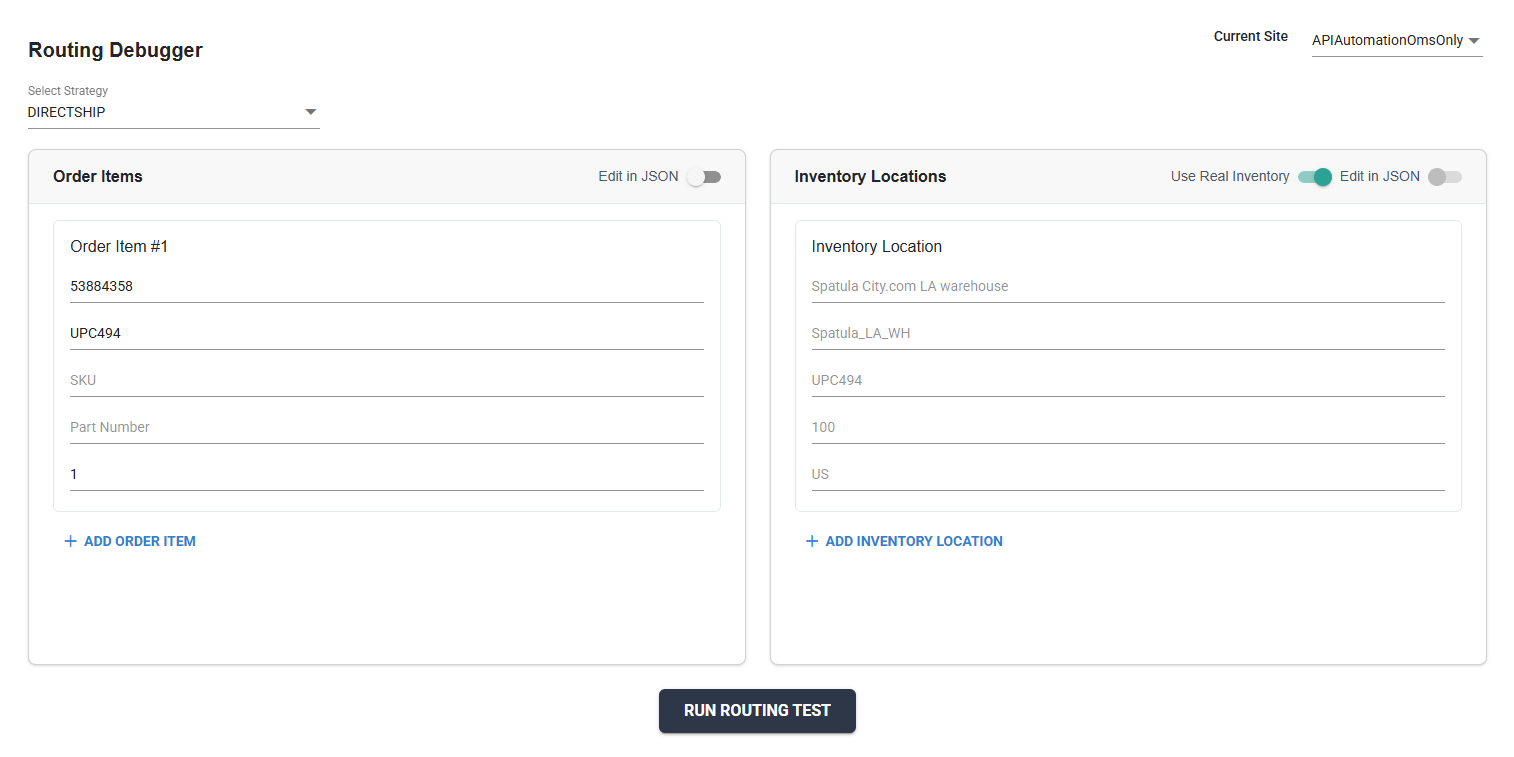
- In the Inventory Locations page, enable or disable the Use Real Inventory toggle depending on whether you want to reference current inventory levels for the request or provide mock inventory data.
- Using real inventory does not perform any allocation, deallocate, or other inventory adjustment calls. It only reads current inventory from your site. The inventory location form and Edit in JSON toggle will be disabled when using real inventory.
- If using mock inventory, provide the inventory data in the inventory location form or directly edit the request by toggling Edit in JSON. This could be a copy/paste of a real Get Inventory API response with some fields adjusted for testing purposes. This gives you the flexibility to test Order Routing’s suggestion logic in different scenarios without the need to modify actual inventory data.
- Click Run Routing Test. The page will validate the JSON and if there are no errors, it will process the request and display the results in a series of sections that appear at the bottom of the page.